Advanced Filters & Gadgets is available for Jira Cloud and is built on Atlassian Forge. As a Forge app it runs entirely on Atlassian’s own infrastructure, which is why the Marketplace listing carries the Runs on Atlassian badge.
Install from Jira #
The quickest route, if you’re already in Jira:
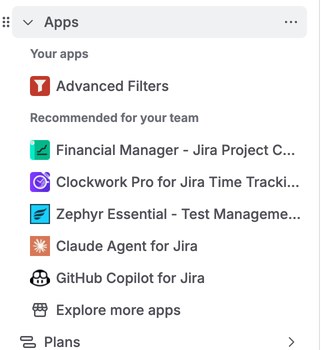
- In the top navigation, select Apps → Explore more apps.
- Search for Advanced Filters & Gadgets and open the listing.
- Select Try it free.
- Review the details and select Start free trial.
- When installation finishes, open the app from Apps → Advanced Filters.
Install from the Atlassian Marketplace #
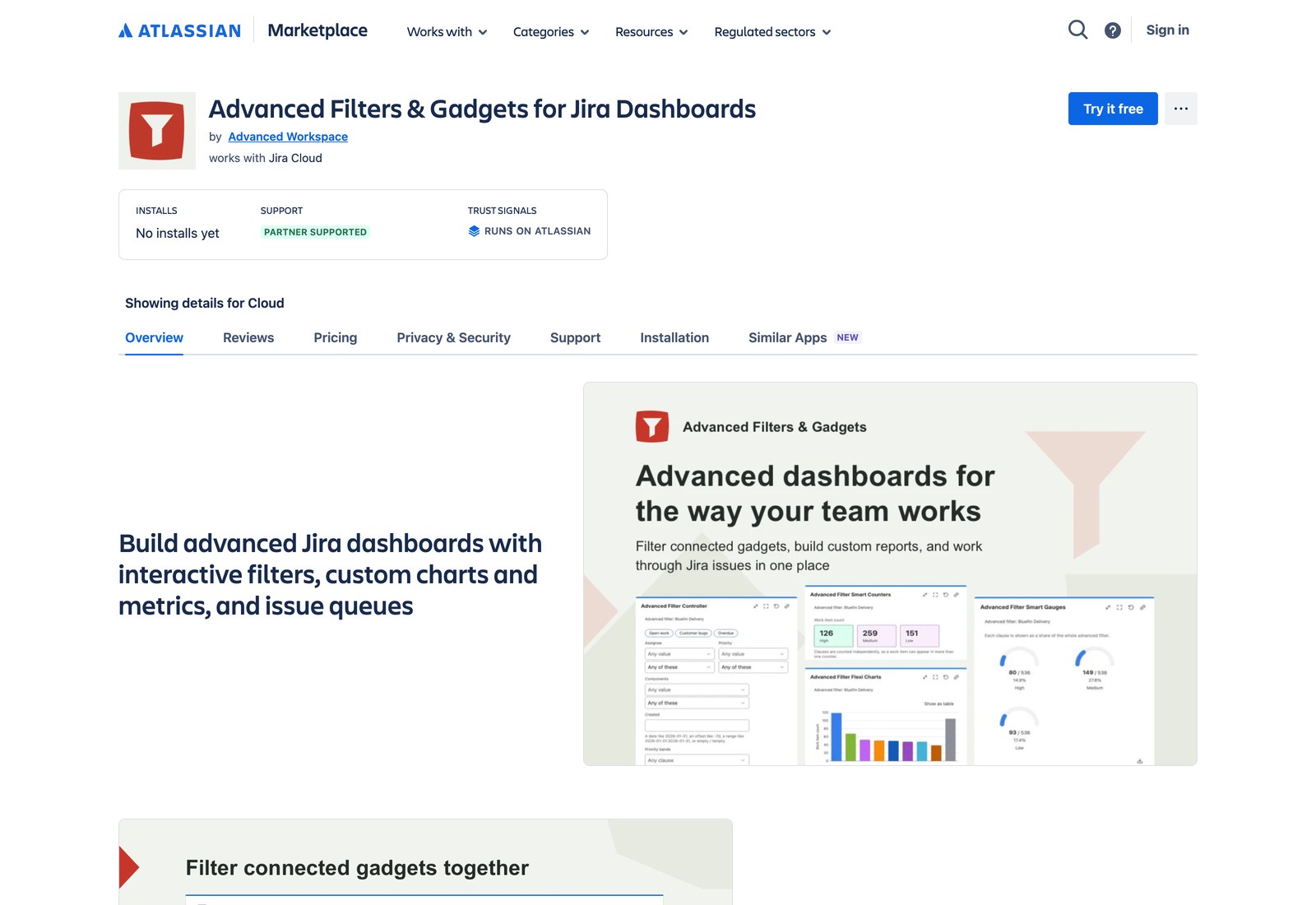
- Open the Advanced Filters & Gadgets listing on the Atlassian Marketplace. (Or search the Marketplace for Advanced Filters & Gadgets.)
- Open the listing and check it carries the Runs on Atlassian badge.
- Select Try it free.
- Sign in with your Atlassian account if prompted, choose the Jira Cloud site to install on, and select Review.
- Select Start free trial to confirm.
First run #
Open the app once after installing. The first visit finishes the setup by itself — if you see “Setting up Advanced Filters”, give it a moment and the page appears on its own.
After that there is nothing to configure. Anyone logged in can create advanced filters straight away, and all thirteen gadgets are immediately available in Jira’s Add gadget panel.
Two things worth doing on day one:
- Check that your trial or subscription is active — see Pricing and licensing.
- Decide who may create filters, run bulk operations and export data, in Global settings → Access policies. The defaults are sensible, so this is optional — see Access policies.
Updates #
Advanced Filters & Gadgets ships as a Forge rolling release. New versions install on your site automatically — there is no update button and nothing to schedule. Most releases simply appear.
The exception is a release that asks for additional permissions. Atlassian never grants those silently, so a Jira admin has to approve them. While approval is pending, the features that need the new permissions stay inactive and everything else in the release works normally.
Approving new permissions #
You need to be a Jira administrator or an organization admin.
- Open Apps → Manage your apps, then follow Connected apps through to Atlassian Administration. (Direct route: Administration → your site → Settings → Connected apps.)
- Find Advanced Filters & Gadgets and open View app details. When permissions are waiting, App access reads Outdated with an Update link beside it.
- Select Update. The dialog lists exactly what is being requested.
- Review it and select Accept & Update. Cancel leaves everything as it is — the version stays installed and the gated features stay off.
Afterwards App access reads Up to date, and View permissions shows what the app currently holds.
Uninstalling #
Go to Jira Settings → Apps → Manage apps, find the app and select Uninstall.
Where to go next #
- Get started with Advanced Filters & Gadgets — the five-minute tour.
- Create your first advanced filter — build one from a Jira filter you already have.


