The Time Series Chart plots up to ten of your filter’s own time series on one axis, so trends that belong together can be read together: throughput against backlog, or three teams’ velocity side by side.
Add it to a dashboard #
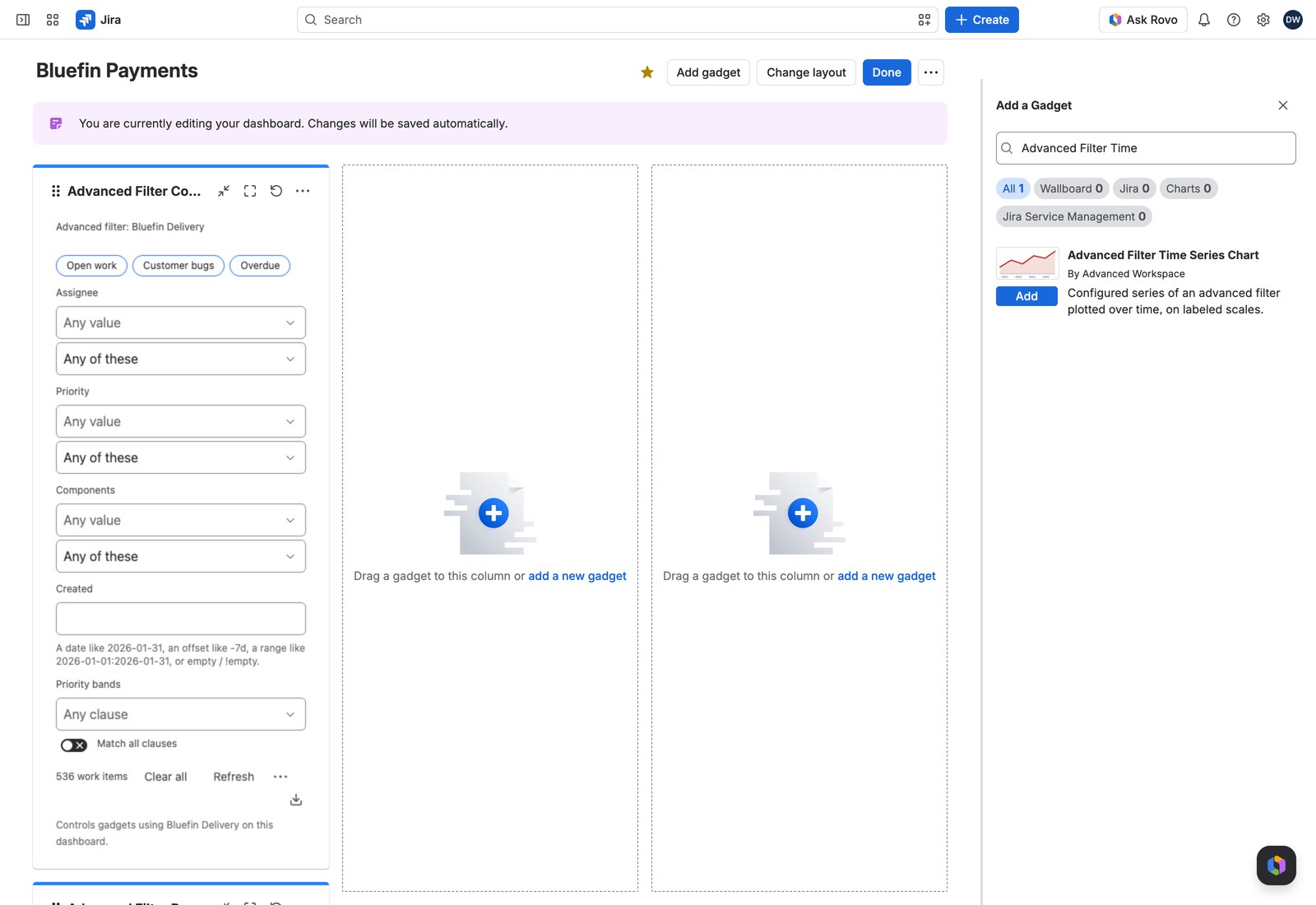
- Open the dashboard, select Edit, then Add gadget, and search for Advanced Filter Time Series Chart.
- Choose an Advanced filter first: the Series picker only offers the time series defined on it.
- Add the series you want and put them in order.
- Select Save.
Configuring it #
| Setting | What it does |
|---|---|
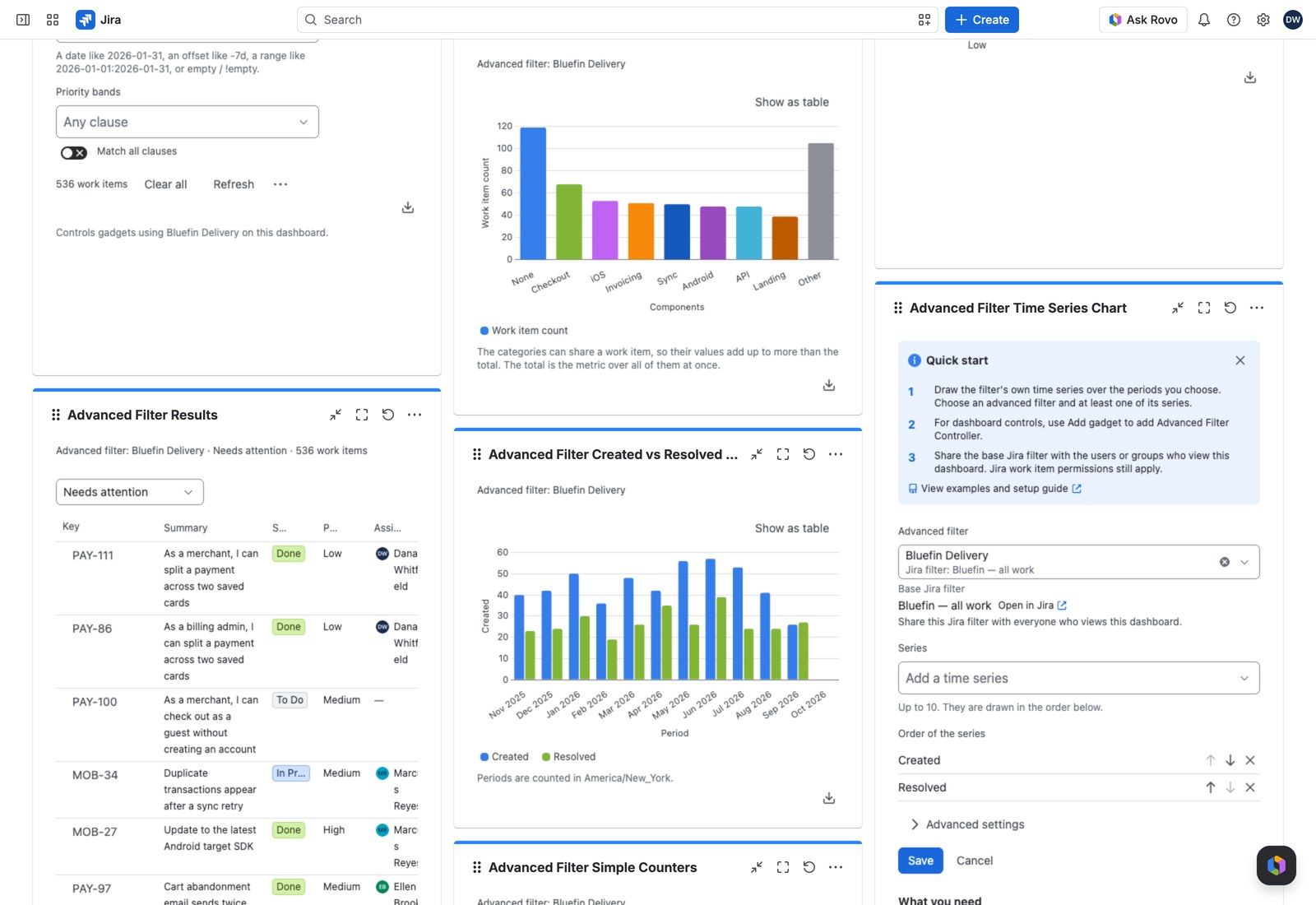
| Advanced filter | Which filter this reads. Changing it clears your chosen series, since a series belongs to the filter that defines it |
| Series | Add one at a time, up to ten. Reorder or remove them in the list below the picker |
| Period | Auto, Days, Weeks, Months, Quarters or Years. Auto picks the finest bucket the range fits |
| Range | All dates, the last or next N periods, calendar units, or between two dates, plus Include the period in progress |
| Aggregation | Per period, cumulative over the range, or cumulative from the start |
| Chart type | Lines, Area, Bars or Stacked bars |
| Show periods with nothing in them | Off hides empty buckets. Range totals are unchanged either way |
| Working query | Optional JQL narrowing this gadget only |
Reading it #
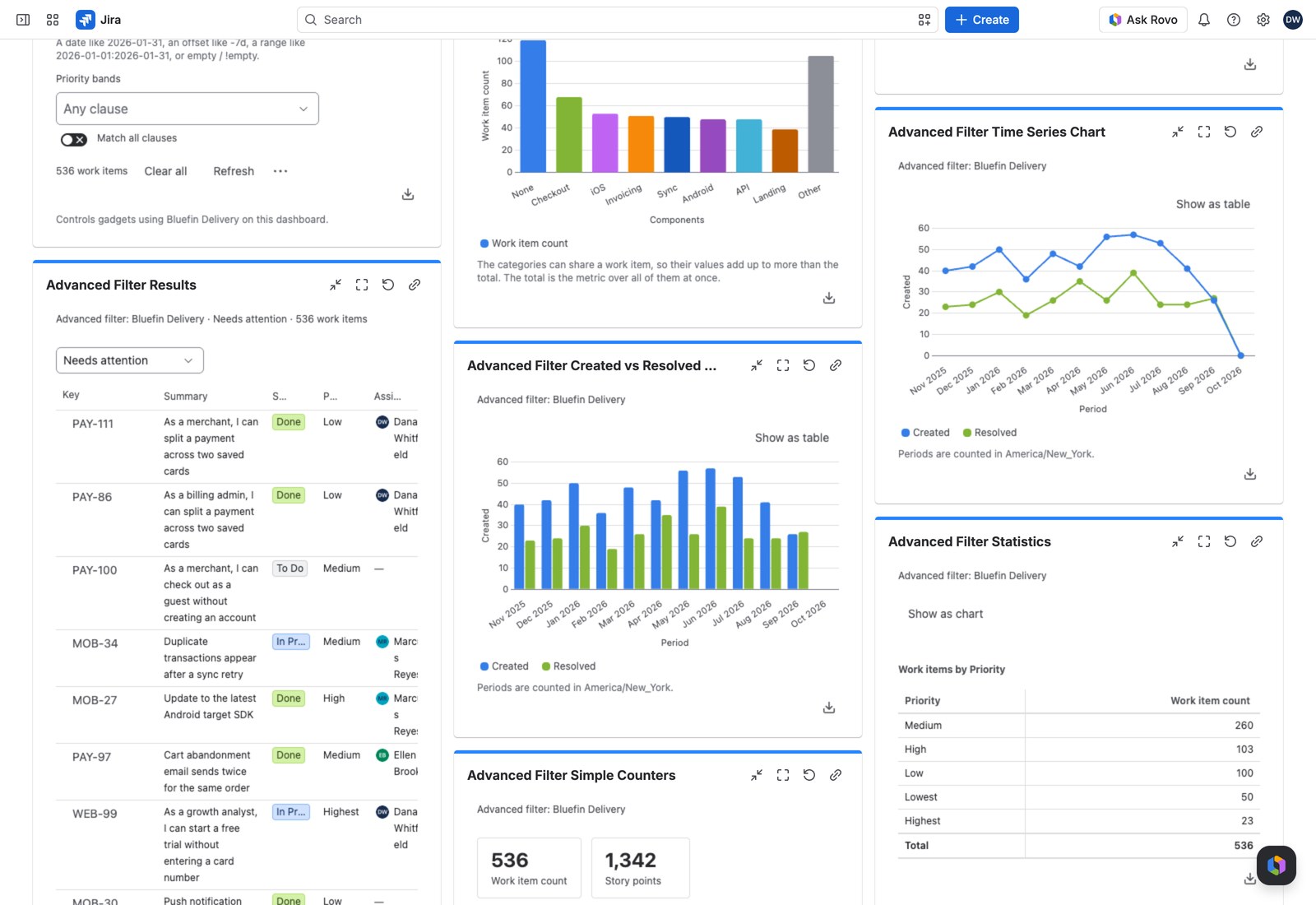
Each series draws on the scale for its own unit, with a legend underneath that switches series on and off. Select any mark or table cell to open the work items behind it in Jira’s own search, up to 200 at a time.
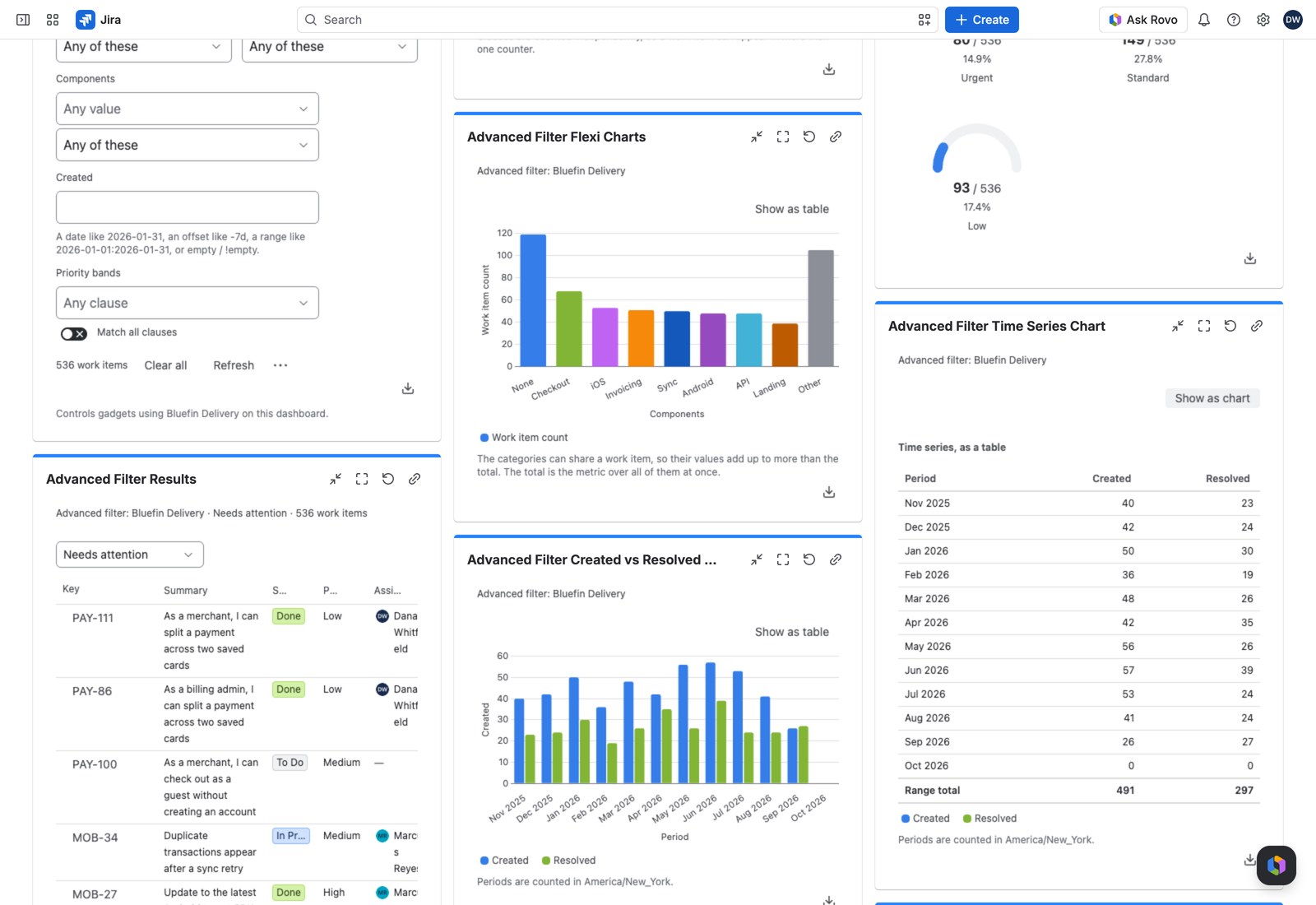
Show as table swaps the chart for the same numbers, with a range total at the foot. Notes underneath flag anything worth knowing: a series no longer defined on the filter, a unit that disagreed with what was measured, the reporting timezone, and any hidden empty periods.
A series removed from the filter reads “Time series (not available)” rather than silently vanishing, so you can see what needs fixing.
With the Controller #
An Advanced Filter Controller on the same filter narrows every series at once.
Exporting #
CSV, Excel or PDF. The PDF carries the chart image as well as the numbers. On screen and in the PDF, a series measuring a custom value reads at its definition’s decimals; CSV and Excel keep the full value, Excel showing those decimals.
If something looks off #
- “This chart cannot be drawn”: none of the configured series can be measured over time any more.
- “These series cannot share one chart”: you’ve got three units, so remove one or draw it in a second gadget.
- “Stacked bars need one unit”: switch to lines or bars, or keep only the series that share a unit.
- “This advanced filter has no time series defined yet” in the form: define one on the filter first.
- “1 value could not be read, so it matches no work items.”: a value applied on the dashboard can’t be read, so it’s never applied in part and every series measures nothing until you select Remove what cannot be applied in the Controller’s warning, or in this one when there’s no Controller on the same filter.


